
How to use Optimization Wizard
Turn insights into actions. The Optimization Wizard transforms audits, mappings, coverage gaps, and embedding scores into a prioritized, step-by-step AI SEO improvement plan.
Steps to use the Optimization Wizard #
Log in to the account with valid credentials.
It navigates to the Home page.
Step 1 : #
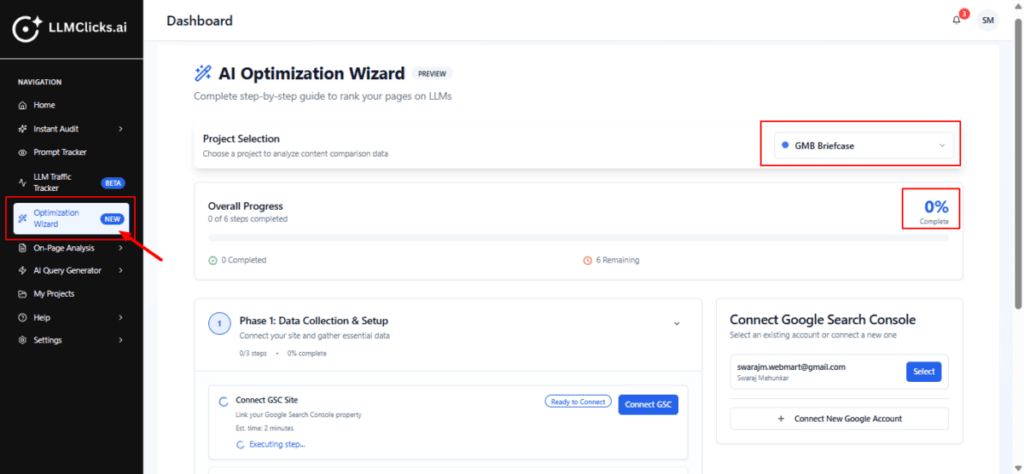
The left sidebar Optimization Wizard menu item is highlighted — this is where you access that tool.
Use the project selector to switch projects — each project has its own wizard progress.
For a new project, start with Phase 1: connect Google Search Console, fetch pages, and fetch queries.
Work through steps sequentially — the wizard unlocks later phases only after prerequisites are satisfied.
Lorem ipsum dolor sit amet, consectetur adipiscing elit. Ut elit tellus, luctus nec ullamcorper mattis, pulvinar dapibus leo.
Step 2 : #
If you haven’t connected GSC, click Connect GSC and choose the Google account that owns the site property.
After connecting, fetch pages and then fetch queries so the wizard can analyze real performance and queries.
If GSC access is missing for the selected account, use Connect New Google Account to add the correct account.
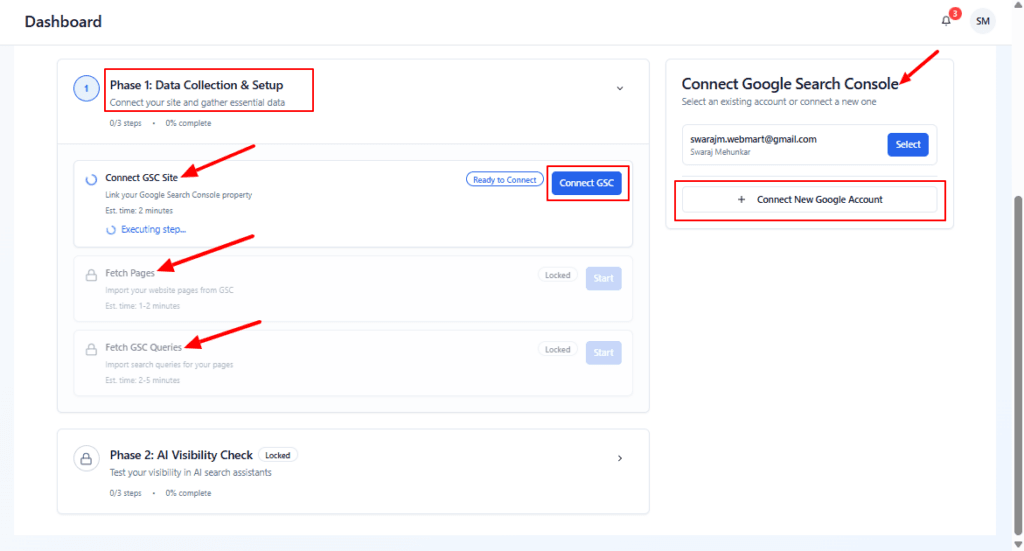
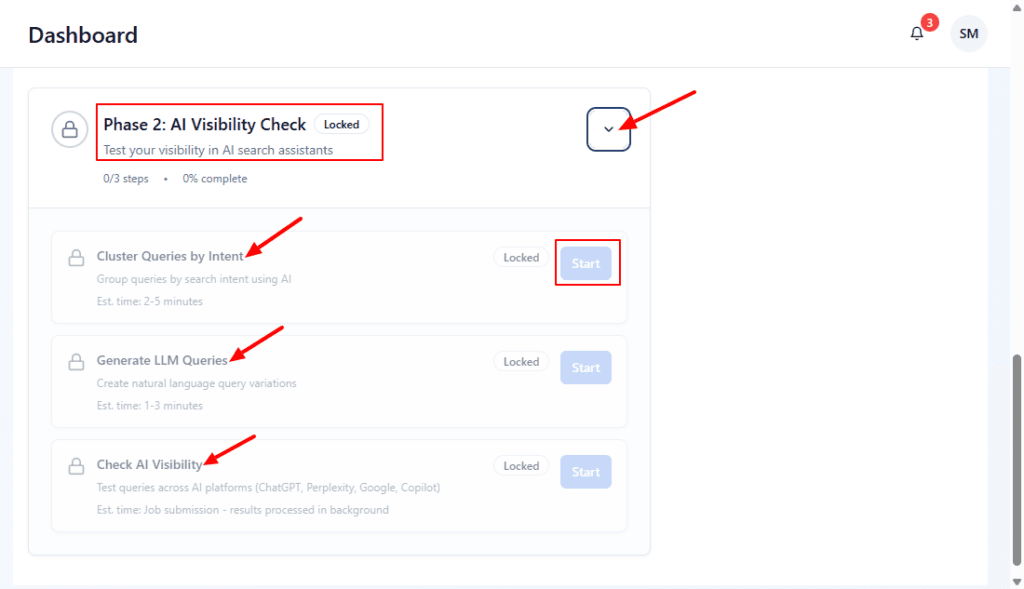
Finish all required steps in Phase 1 (Data Collection & Setup) first — Phase 2 unlocks automatically after prerequisites complete.
Once unlocked, follow the tasks in order: cluster your queries, generate LLM variations, then run visibility checks across platforms.
Use the small descriptions to estimate time and resource needs for each task.
Step 3 : #
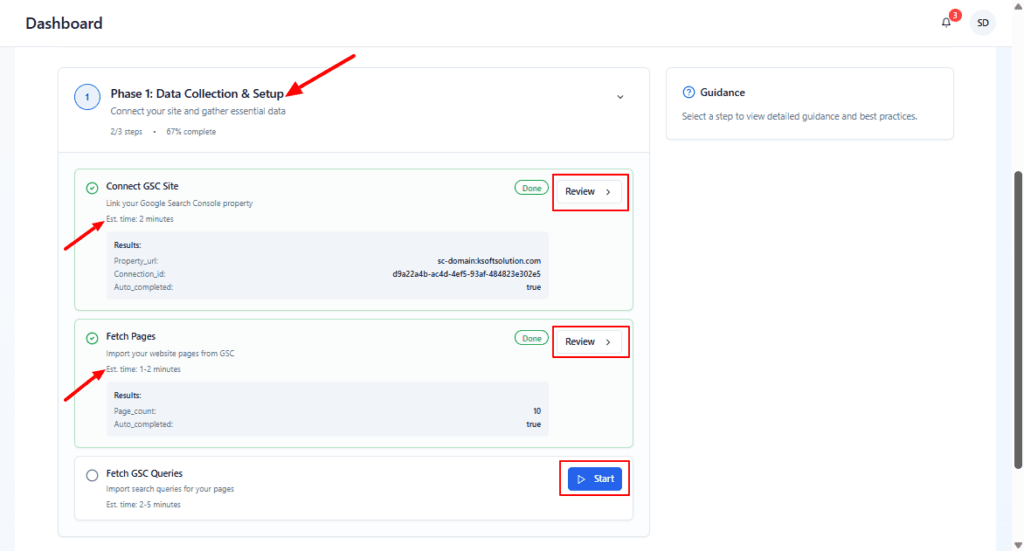
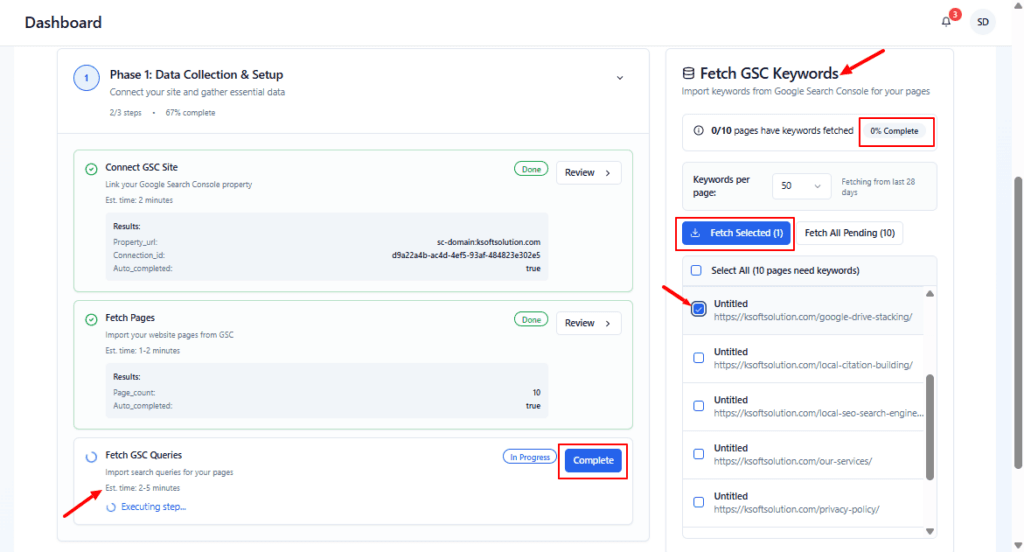
Click Review for any completed step to inspect results (connection details, imported page counts).
If a step is not done, click Start to begin it.
Use the
Est. timeand status indicators to plan — small steps usually finish quickly.If GSC connection failed, use the Review pane to troubleshoot the connection or reconnect.
Use the right card to select pages for which you want to fetch GSC keywords (check boxes).
Click Fetch Selected to import keywords for chosen URLs; use Fetch All Pending if you want every pending page imported.
Monitor the left panel for the Fetch GSC Queries progress and click Complete once the process finishes or auto-completes.
If a step is slow, refresh or re-run the fetch for individual pages as needed.
Step 4 : #
Use this area to quickly check how far you’ve progressed through the 6-step wizard.
If progress is low, expand the phases below to see which tasks are incomplete.
Click the project selector (top-right) to switch projects and see that project’s wizard progress.
