How to use On Page Audit
The On-Page Audit tool analyzes the content and structure of your webpages to check how well they are optimized for AI search platforms like ChatGPT, Perplexity, Gemini, and Claude. It identifies missing elements, content gaps, and optimization opportunities that help your pages rank better in LLM-generated answers.
Steps to use the On Page Audit #
Log in to the account with valid credentials.
It navigates to the Home page.
Step 1 : #
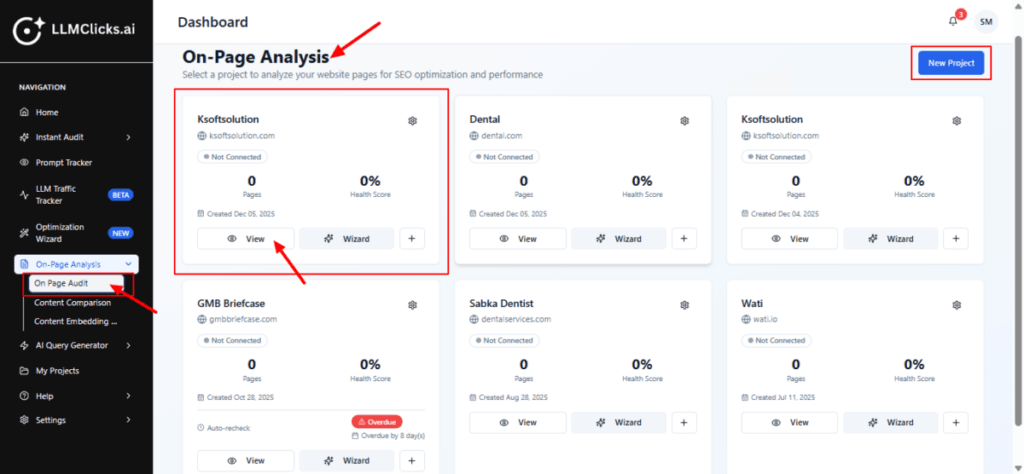
From the dashboard, go to the left navigation menu.
Click On-Page Analysis to expand its options (if it isn’t already open).
Click On Page Audit to open the tool.
From the On Page Audit list pick the project card you want to analyze (click the card area or the View button).
If you need a fresh project, click New Project and complete the Create Project modal.
After selecting View, you’ll be taken to the project’s On-Page workspace to Add Pages, connect GSC, and run audits or use the Wizard to follow guided optimization steps.
Use the card settings (gear icon) to manage the project (rename, delete, or change settings).
Step 2 : #
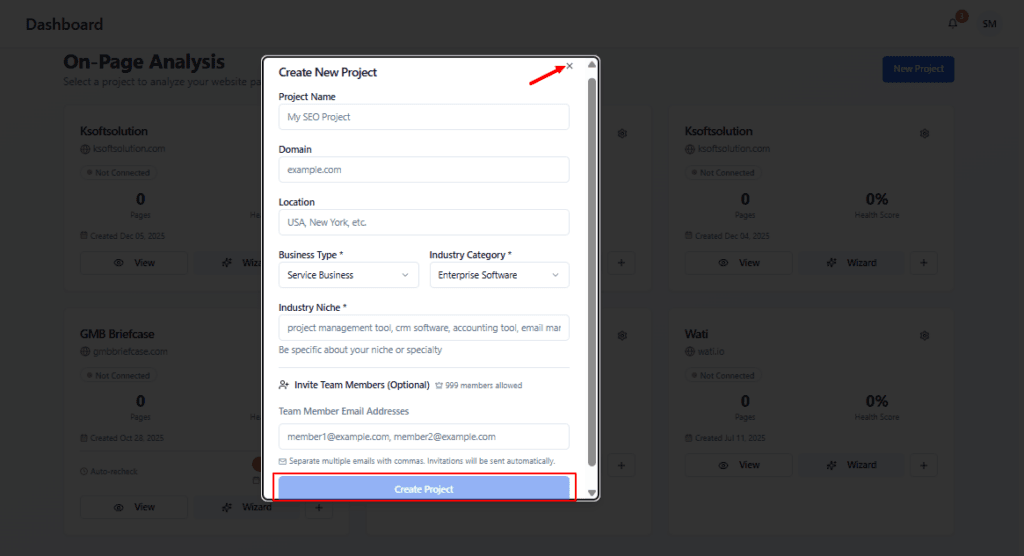
Fill Project Name and Domain (domain is required — this ties crawls and GSC pages to the project).
Optionally enter Location, Business Type, Industry Category and Niche — these help category-specific guidance in later steps.
Add team member emails if you want collaborators to receive invites.
Click Create Project to create the project and return to the On-Page dashboard. If you change your mind click the X to close.
Step 3 : #
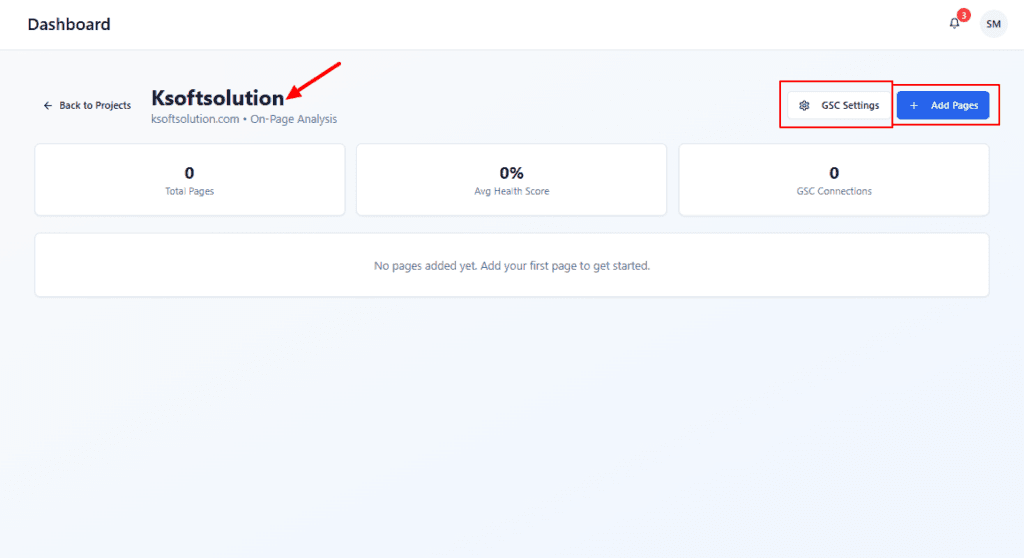
After selecting view, Confirm you’re in the correct project by checking the project name at top.
If you haven’t connected Google Search Console, click GSC Settings to link an account/property (this enables keyword / page mapping).
Click Add Pages to add one or more site pages (manual add or import) — pages you add will populate the audit and the summary cards will update.
Step 4 : #
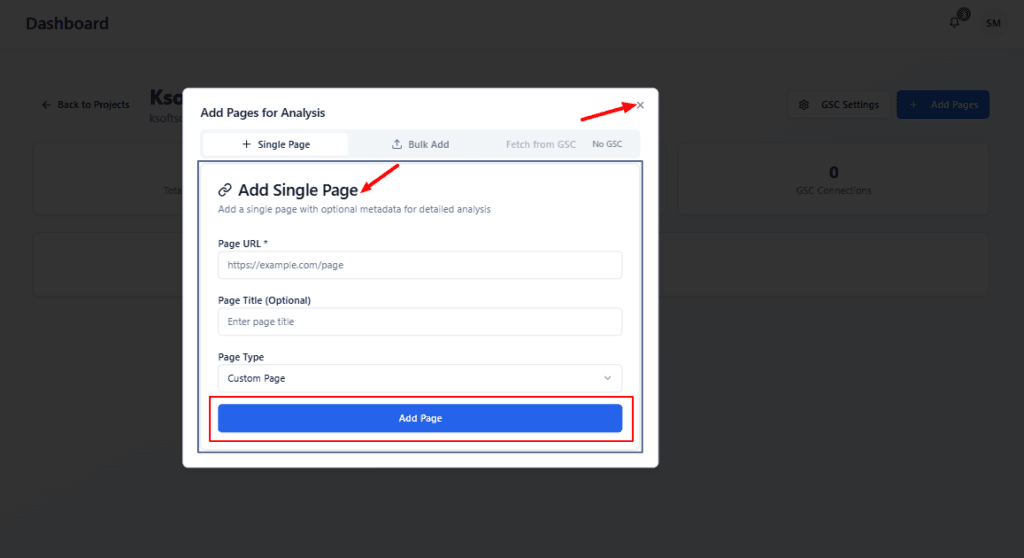
Paste the full canonical URL of the page you want audited into Page URL (include
https://).Optionally add a friendly Page Title and choose the Page Type — this helps grouping and guidance during audits.
Click Add Page to queue the page for analysis. After adding, the page appears in the Pages table and the audit will run (status will change from queued → in progress → completed).
If you need to add many pages at once, switch the modal to the Bulk Add.
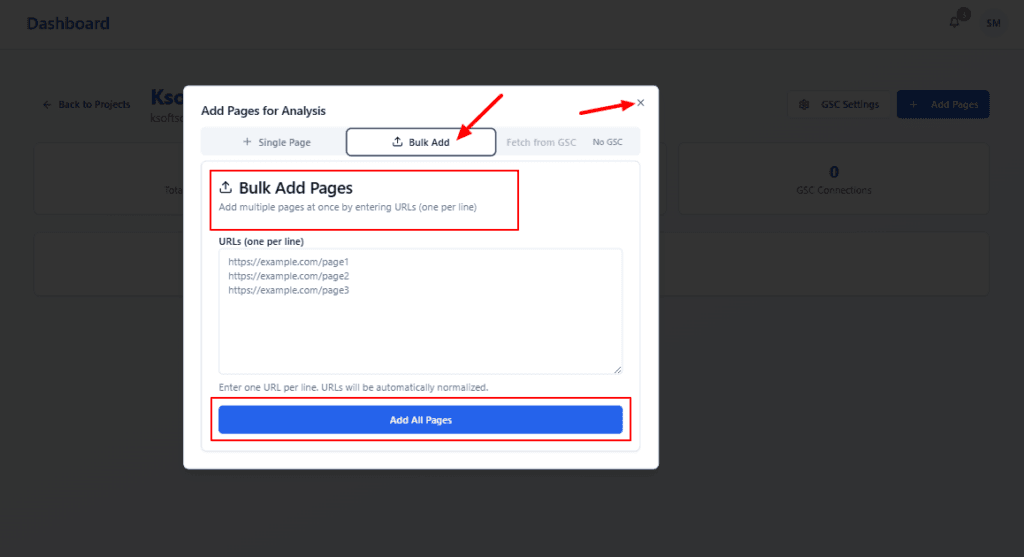
From the Add Pages modal, click the Bulk Add tab (already selected in this screenshot) when you want to add many pages in one go.
Create a plain-text list of the full canonical URLs you want audited, one URL per line.
Prefer canonical/absolute URLs (including
https://) to avoid duplicates or normalization issues.Click inside the URLs (one per line) box and paste your list. The UI notes that URLs will be automatically normalized.
Click Add All Pages to queue the pages for analysis. Each URL will be added to the project’s Pages table and the system will begin auditing them (status will show queued → in progress → completed).
If you change your mind, click the X in the top-right to close the modal without adding pages.
Click the page URL to open the full audit report for that page.
If you’ve fixed issues, click the re-run icon to perform a fresh audit and update the score/metrics.
Use the eye to quickly preview the last audit results without leaving the table.
Remove obsolete pages using the trash icon.
Use the table filters (All Status / All Sources) and search box to find pages quickly when you have many pages.

Click any category row to expand into the detailed checks and remediation tips (that’s where you’ll see each specific issue and suggested fixes).
Use the Content Analysis tab for content-specific recommendations and Task Management to convert audit findings into assignable tasks.

Step 5 : #
- Generate LLM queries (via the Search Queries / Generate LLM Queries flow), then run content analysis to see how well the page answers LLM-style queries and where content gaps exist.

Step 6 : #
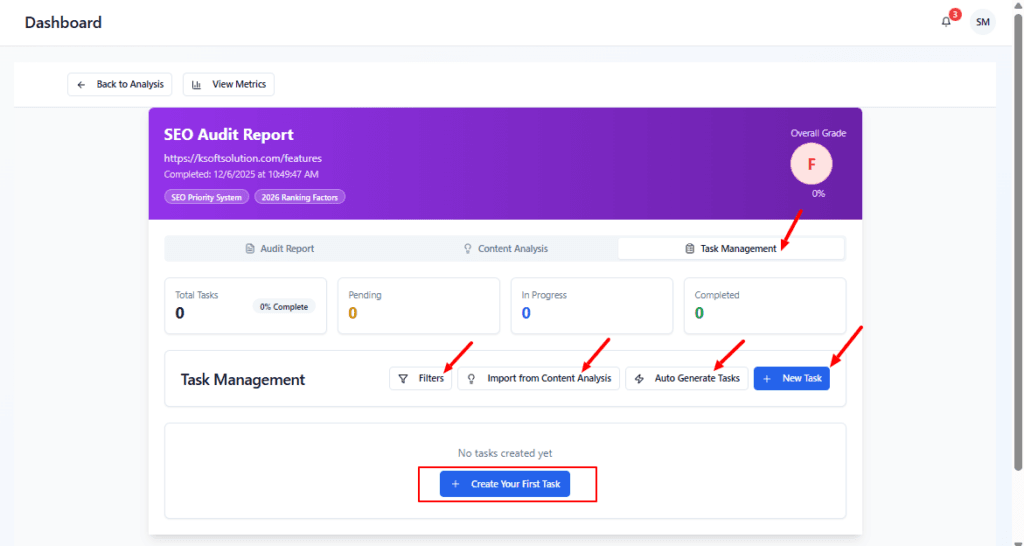
Task Management tab is opened.
This tab shows the total tasks, pending task, In progress task, completed tasks.
We can filter the task as per task name or any related keyword.
Used to manually add a custom task.
Create new task modal open after clicking the new task button.
After enter all the details click on create task button to add a new task.

Automatically creates tasks based on audit failures (e.g., “Improve Text to HTML Ratio”). Click to generate tasks that match audit findings.
After generating the task, a toast message is shown in the top right-side corner (Task Generated Successfully).
Each task displays: title, short description, tags (Technical / Content / Priority), team/owner, date, and related section.
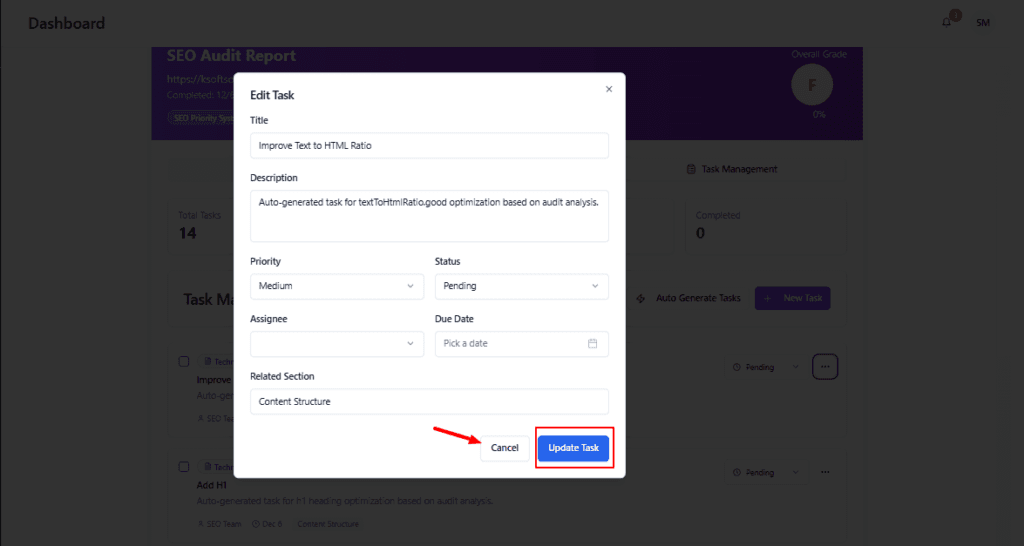
Edit Task / Delete Task. Use Edit to change title/description/priority/assignee/due date. Use Delete to remove the task.

Used the edit (pencil) icon to change details.
Edit task modal open.
Change the details and click Update Task to save; Cancel to close without changes.