Content Emebedding Analyzer
Go beyond keyword matching. Use AI-powered semantic analysis to check how well your content aligns with LLM queries and Google Search Console keywords — section by section.
Steps to use the Content Embedding Analyzer
Log in to the account with valid credentials.
It navigates to the Home page.
Step 1 :
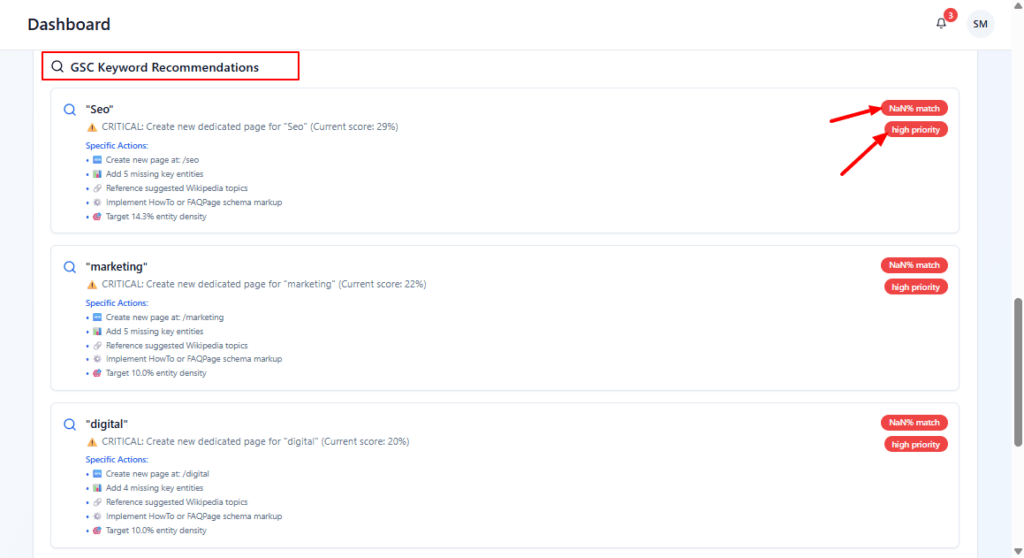
From the Home, go to the left navigation menu.
Click On-page Analysis to expand its options (if it isn’t already open).
Click Content Embedding Analyzer to open the tool.
Choose Analysis Type (start with Comprehensive Analysis for full detail).
Paste your page content in the Content Input box.
Add up to 3 target LLM queries (one per line).
Add up to 10 GSC keywords (one per line).
Click Analyze Content.
After processing, you’ll be taken to the Analysis Results screens (Overview, Section Analysis, Recommendations).
Step 2 :
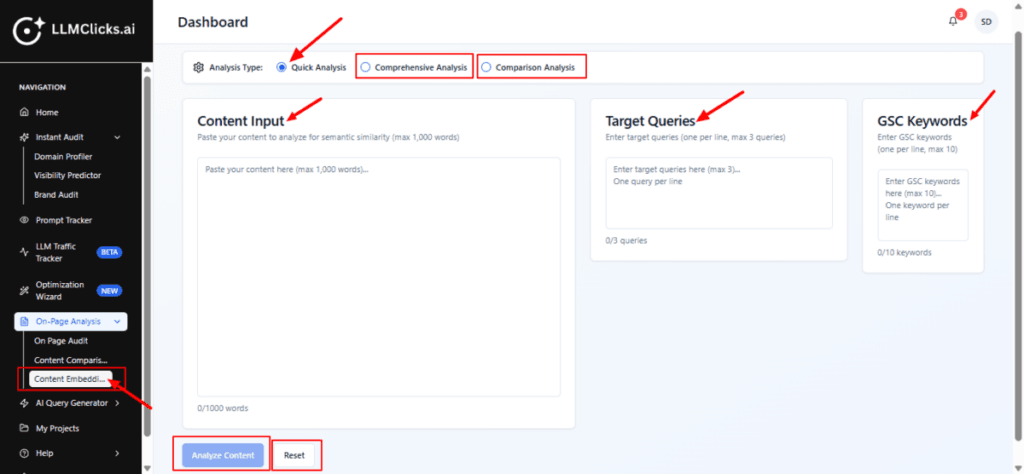
This is the Overview tab of the Analysis Results. It gives a high-level summary of how your content performed.
LLM Queries – number of queries analyzed.
GSC Keywords – number of keywords used in the analysis.
LLM Score – overall similarity score between your content and LLM queries.
GSC Score – overall similarity vs GSC keywords.
LLM–GSC Overlap – how much the LLM space overlaps with your current organic keyword set.
Sections – number of sections your content was split into.
Use Export CSV to share a summary with your SEO / content team.
Step 3 :
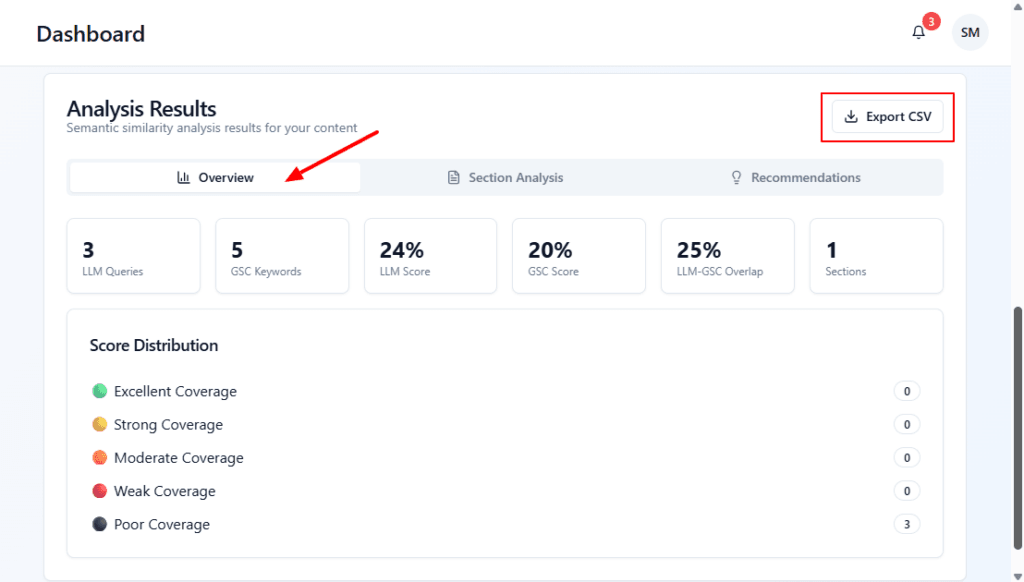
This is the Section Analysis view, where you see performance by content section and by query/keyword.
For each Section, look at:
Which queries have the lowest scores (those topics need more coverage).
Which GSC keywords have weak coverage (add them naturally to the section).
Focus first on sections marked poor or with 0% coverage.
Step 4 :
This is the Recommendations tab of the Analysis Results. It turns the scores into actionable tasks.
Sort recommendations mentally by:
Priority (High first)
Impact (CRITICAL / new page creation vs minor tweaks).
For each high-priority item:
Create a new page or update an existing one following the Specific Actions bullets.
Use the suggested URL slug, entities, and schema hints to guide your implementation.
Export the list via CSV and feed it into your task manager (e.g., ClickUp, Asana, Notion).
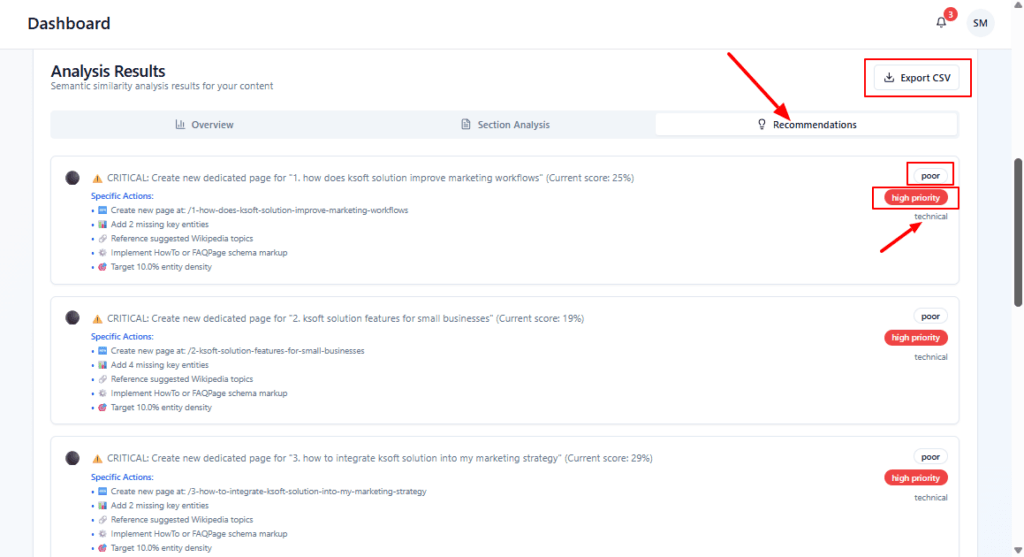
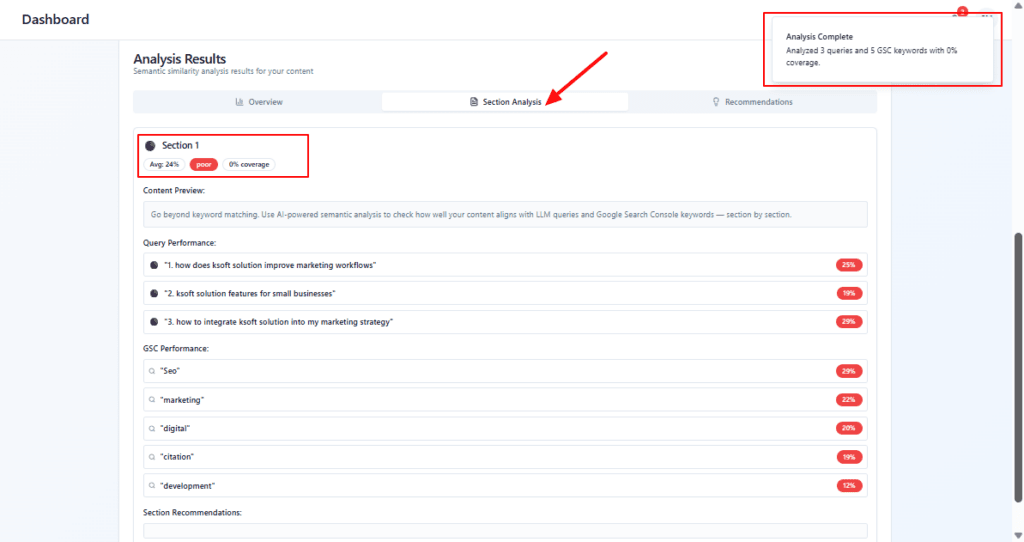
This is the GSC Keyword Recommendations view. It focuses specifically on GSC keywords that your content is under-serving, with suggested actions for each.
For high priority keywords:
Plan a new dedicated page (or major update) using all the Specific Actions.
Make sure the page’s topic and slug align with the recommendation.
Use this list as a GSC-driven content roadmap:
Start with CRITICAL + high priority keywords.
Then move to medium/low priority once core gaps are covered.