How to use Local Query Generator
The Local Query Generator creates geo-targeted search queries for local businesses based on services, city, and customer intent. It mimics how real users search in AI assistants and Google for nearby solutions—helping you improve local SEO, AI visibility, and lead generation.
Steps to use the Local Query Generator #
Log in to the account with valid credentials.
It navigates to the Home page.
Step 1 : #
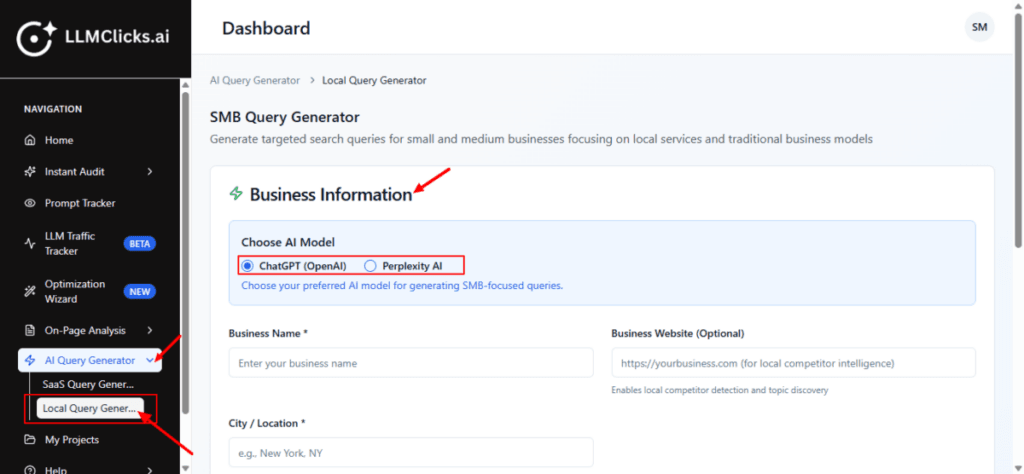
From the Home, go to the left navigation menu.
Click AI Query Generator to expand its options (if it isn’t already open).
Click Local Query Generator to open the tool.
Under AI Model Selection, choose the model you want (e.g. ChatGPT (OpenAI)).
Fill the Business Information like (Business name, Business Website(optional), City/location).
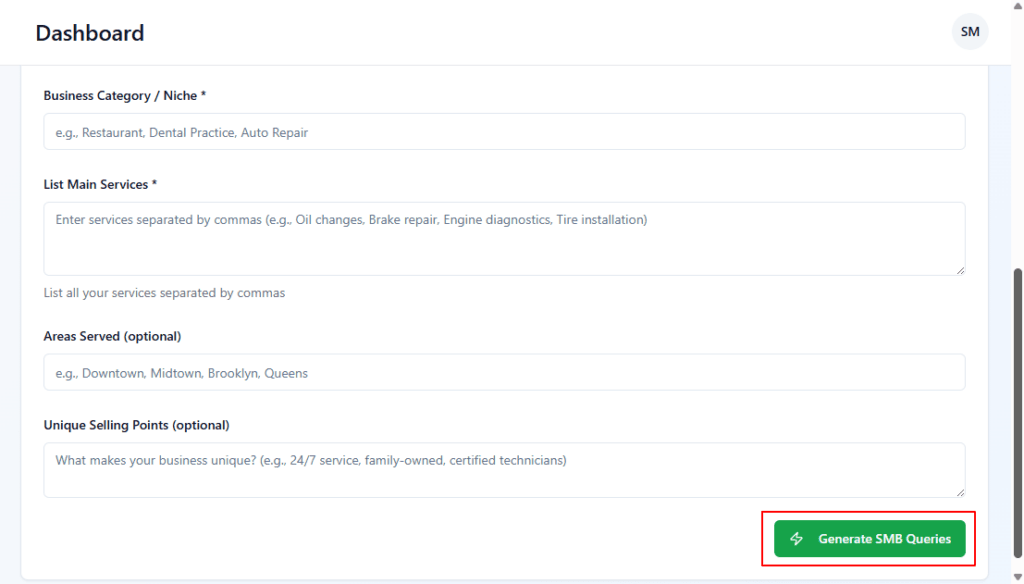
Define your Business category/Niche like (Digital Marketing Agency, Dental Clinic, Plumber, etc.).
In List Main Services *, type services separated by commas, like Website Design, Logo design, etc.
Areas served and Unique Selling points this fields are optional.
Click Generate SMB Queries.
The tool sends this info to the AI and creates a set of local search queries tailored to your niche, services and area.
Step 2 : #
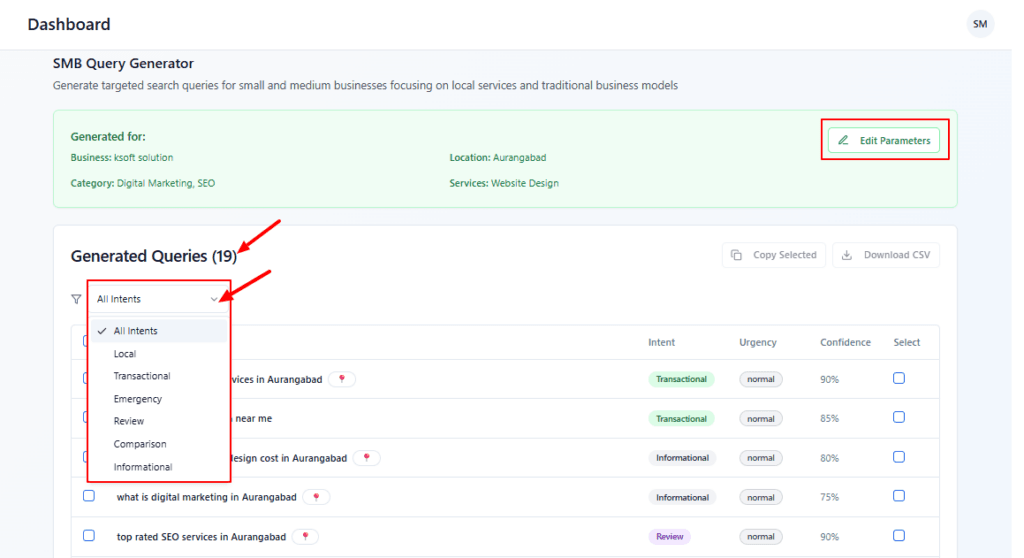
Review overall queries
Scroll through the list to see all generated search phrases your local customers might use.
Click the intent dropdown (All Intents).
Choose a specific intent:
Local – “near me” / city-based.
Transactional – ready-to-buy searches.
Emergency – urgent services.
Review / Comparison / Informational – research-focused queries.
The list refreshes to show only that intent type.
Click Edit parameters in the green banner if you want to change the business niche or services, update locations, and re-run generation to get a fresh query set.
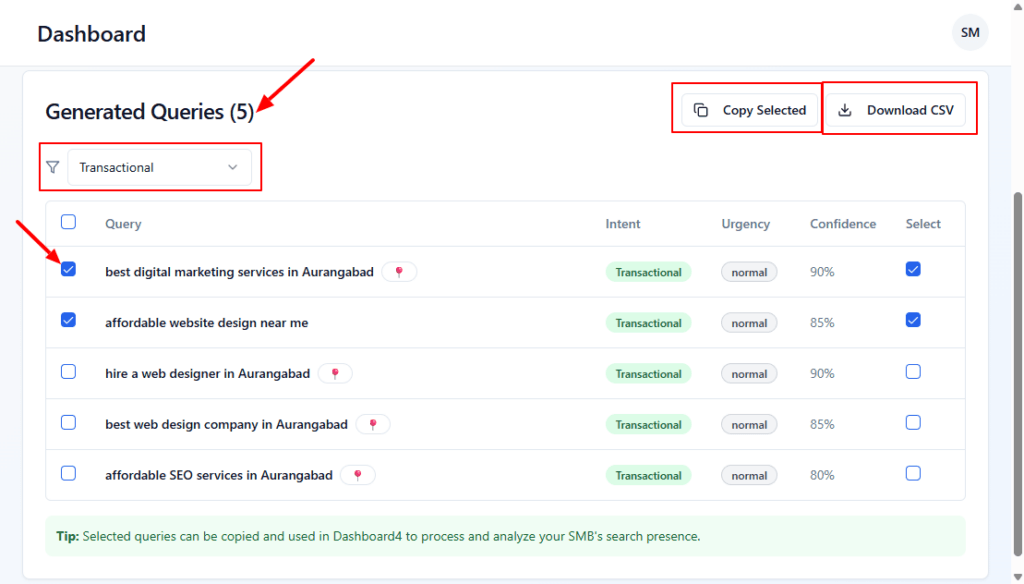
Tick the checkboxes beside queries you want to export or use in campaigns.
Use the intent dropdown (here set to Transactional) to show only the type of queries you need, e.g., for Google Ads or service pages.
Click Copy Selected to copy all selected queries to your clipboard.
Click Download CSV to export the selected queries as a CSV file.
Use the CSV in spreadsheets, reporting, or to import into other SEO/ads tools.